Clientarea
Clientarea > Creating accounts
- Go to Accounts > Clientarea accounts
.png)
- Click on Add New
- Add the following detail
- Name
- A given name for this user account
- Mandatory
- Is API user
- TIck here if this user account is for using our reporting API
- Not mandatory
- Username
- Add the username for this account
- Mandatory
- Password
- Add the password for this account
- Mandatory
- Staff tag
- Add staff tags here for this client to view a pool of staff
- Not mandatory
- Location tag
- Add location tags for this client to see a selection of locations
- Not mandatory
- Client scheduler
- Allow your clients to create and send schedules ready to be imported into a job
- Name
- Press Submit
- To allocate the reports to this client account
- Click on Reports on the client accounts list
.png)
- Click on Add New
- Search for the job and select from the list.
.png)
- Press Submit
- Repeat as necessary to grant access to all required reports
- Click on Reports on the client accounts list
Your clients can now login to your clientarea via https://yourcompanyname.staffed.it/clientarea
Clientarea > Overview
The WiseOS Clientarea provides a centralised platform for managing and monitoring your operations, with access to jobs, shifts, scheduling, staff, locations, reporting and Live Chat.
.png)
Overview
The Home Page is the main starting point when accessing the WiseOS Client Area. It provides quick and easy access to the different sections of the platform through a simple, user-friendly interface.
The available options are determined by your user permissions, meaning you will only see the sections you have been granted access to.
Navigating the Home Page
The Home Page displays a series of navigation tiles, each representing a different area of the platform.
- Jobs - View and access jobs, including relevant job details and associated information.
- Shifts - View shifts and access information relating to scheduled work and staff assignments.
- Scheduler - Access the scheduling interface to view planned activities, shifts and staff allocations.
- Reporting - Access available reports and review operational data and performance information.
- Staff - View staff profiles and access relevant workforce information.
- Locations - View locations and access information associated with individual sites or places of work.
Top Navigation Bar
.png)
The navigation bar at the top of the screen provides access to additional functionality.
Menu Icon (Top Left)
.png)
Opens the main navigation menu, allowing you to move between available sections.
Your Company Logo
.png)
Identifies the platform.
Chat Icon (Top Right)
.png)
Provides access to the Live Chat feature, where available.
User Permissions
Access to individual sections and functionality is controlled by user permissions.
Depending on your assigned permissions, some navigation options or features may not be visible or accessible.
If you require access to an additional section, please contact your system administrator.
Clientarea > Accessing
Accessing the Clientarea
The WiseOS Client Area is accessible via web browser, iOS and Android, allowing users to stay connected, access information and manage operations whether in the office or on the move.
You can access the Client Area through the following platforms:
Client Area (Web Portal) – Access the full Client Area through a supported web browser to manage operations, view reports, monitor staff activity and access available features.
- iOS Customer App – Access the WiseOS Client Area through the dedicated iOS app on an iPhone or iPad.
Download: https://apps.apple.com/ae/app/wiseos-app/id1593197270 - Android Customer App – Access the WiseOS Client Area through the dedicated Android app on compatible devices.
Download: https://play.google.com/store/apps/details?id=com.wisedigital.staffwise.agencyapp
Features & Functionality
Depending on your permissions, the Client Area provides access to:
-
Jobs – View and manage job information.
-
Shifts – Monitor scheduled shifts and staff assignments.
-
Scheduler – View and manage workforce schedules.
-
Staff – Access staff information and activity.
-
Locations – View and monitor operational locations.
-
Reporting – Access reports, dashboards, submissions and media.
-
Live Chat – Communicate with staff and other participants in real time.
Information is synchronised across platforms, allowing users to access up-to-date operational data when switching between devices.
Permissions & Access
Users must sign in using their authorised account credentials. Available features and information are determined by their assigned permissions, meaning some sections may not be visible to all users.
Clientarea > Reporting
.png)
Overview
The Reporting section provides access to reports, surveys, audits and collected data, allowing users to monitor submissions, review results and analyse performance.
Accessing Reports
Select Reporting from the Home Page or main navigation menu to view your available reports.
Each report displays its name, creation details, total submissions and the date of the most recent submission.
Report Options
Select the menu icon alongside any report to access the following options:
Dashboard
View a visual overview of collected data and key performance indicators.
.png)
Reports
Access custom curated detailed reporting and analysis of submitted data.
Report Cards
View individual report cards presenting collected information.
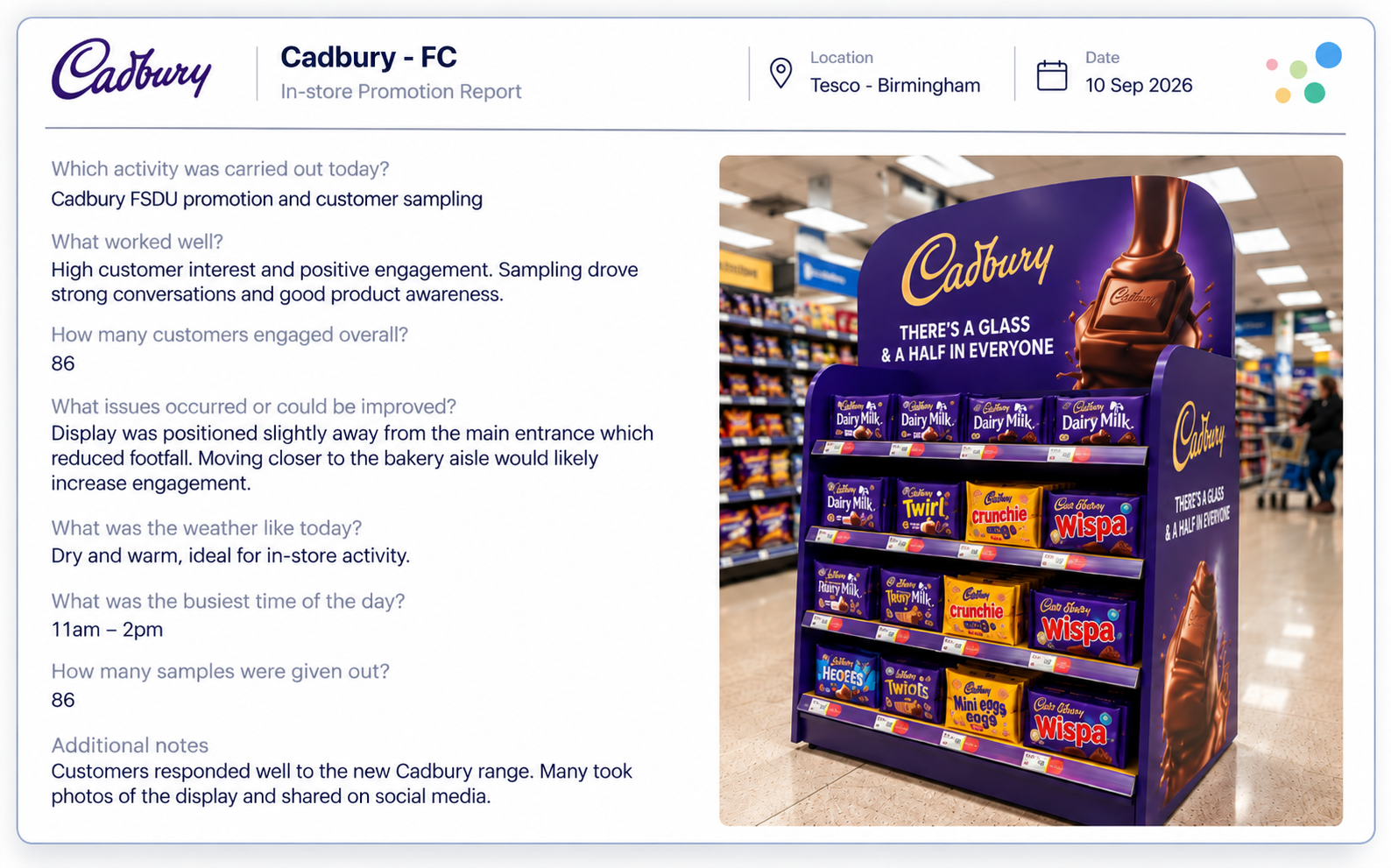
Submissions
View individual submissions and their recorded responses.
.png)
Photos
Access photographs uploaded as part of report submissions.
.png)
Videos
View video content submitted through the report.
Live Chat Media
View photos, videos and other media shared through Live Chat.
.png)
Export
Export collected data for further analysis or external use.
.png)
User Permissions
Available reports and functionality depend on your assigned user permissions. Some options may be restricted or unavailable depending on your access level.