RTW (UK) - Overseas
Configuring overseas Right to Work settings and verification requirements
You can configure whether overseas workers are asked to provide a Right to Work share code during staff registration.
Accessing Right to Work settings
To access these settings:
Navigate to Settings > Staff registration > Manage the registration form > Edit
Go to Manage for the Right to Work section.

Configuring share code requirements
The Share code setting determines whether staff are asked to provide a Right to Work share code during registration.
Choose from three options:
- Show, mandatory – Staff must provide a share code.
- Show, not mandatory – Staff can provide a share code, but it is optional.
- Hide – The share code field is not displayed during registration.
These settings allow you to control how Right to Work information is collected from overseas workers.
Checking and recording UK Right to Work for overseas workers
For overseas workers who require permission to work in the UK, administrators can record Right to Work verification directly within individual staff profiles.
The system supports three verification methods: **Home Office online check, Manual document check and Employer Checking Service**.
Accessing Right to Work verification
To access these options:
- Open the relevant staff profile.
- Navigate to ID & Right to Work and locate the Right to Work status section.
Select the appropriate Right to Work verification type.
Home Office online check
Use this option when verifying an individual's Right to Work through the Home Office online checking service.
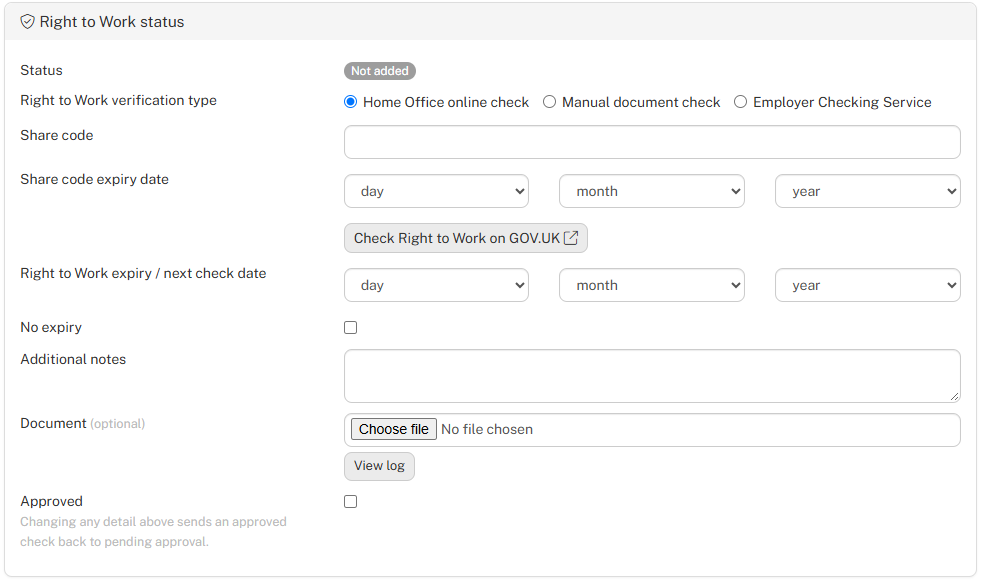
- Share code – Enter the share code provided by the worker. Workers can also supply their share code during staff registration, depending on your registration settings.
- Share code expiry date – Record when the share code expires.
- Check Right to Work on GOV.UK – Opens the official government verification service.
- Right to Work expiry / next check date – Record when the worker's permission expires or a follow-up check is required.
- No expiry – Select where no follow-up expiry date applies.
- Additional notes – Record any relevant information.
- Document – Upload supporting verification evidence.
Manual document check
Select this option where the worker is eligible for a manual Right to Work document check.
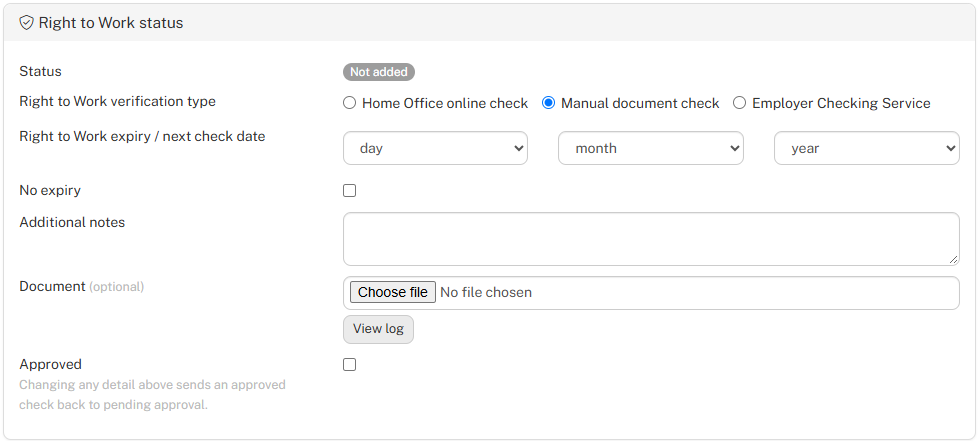
- Record the Right to Work expiry / next check date, add any relevant notes and upload supporting documents where appropriate.
- Select No expiry where applicable.
Employer Checking Service
The Employer Checking Service can be used where the worker's Right to Work needs to be confirmed directly by the Home Office.
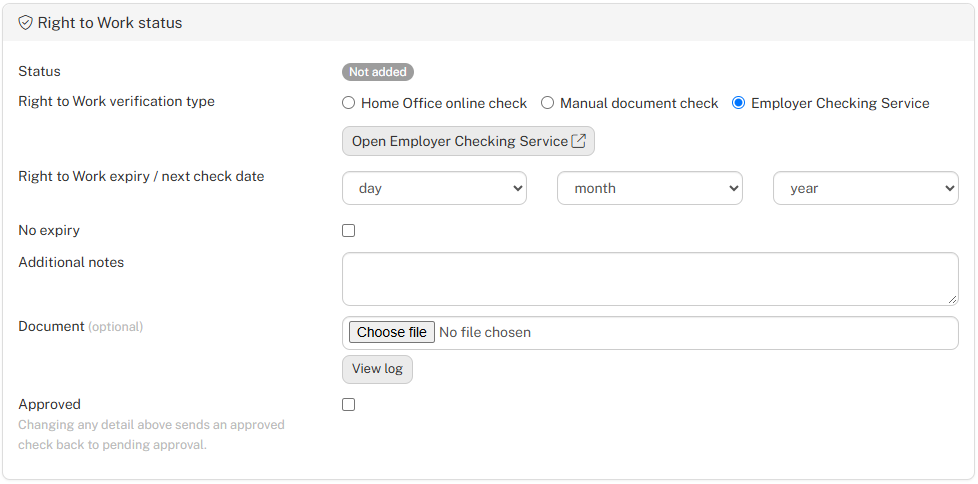
- Click Open Employer Checking Service to access the official service.
- Once the check has been completed, record the relevant expiry or next check date, add supporting notes and upload any confirmation documents.
Approving and recording the check
Once the appropriate verification has been completed, select Approved to record the check as approved.
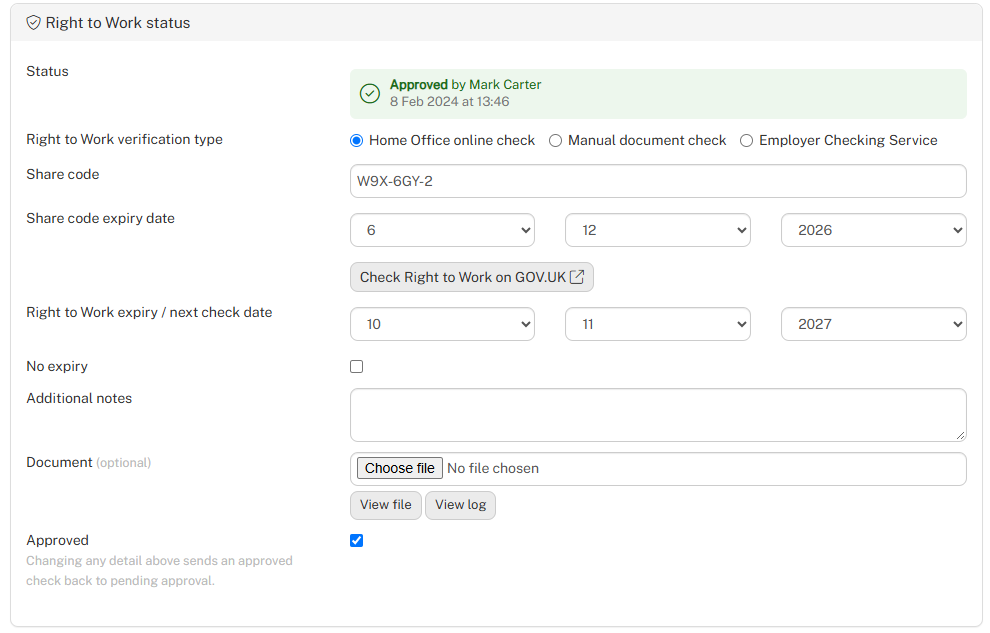
You can also select View log to access the verification record.
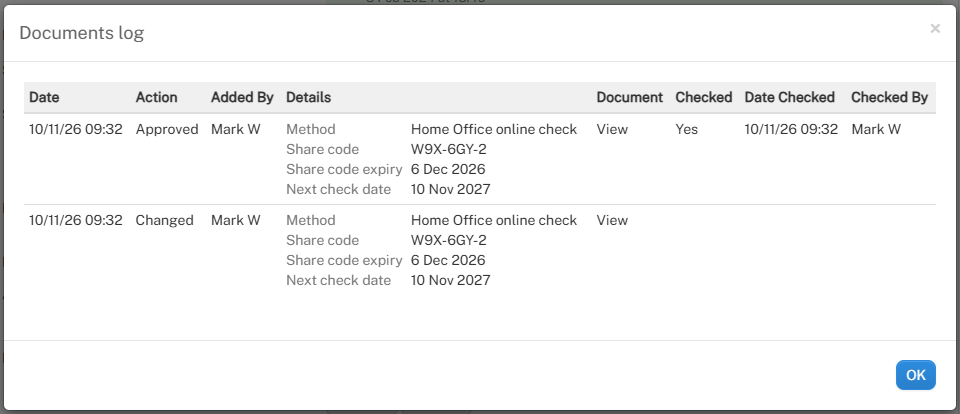
Changing any verification details after approval will return the check to pending approval, ensuring updated information is reviewed again.
Important: Employers remain responsible for completing the appropriate Right to Work verification and retaining the evidence required under UK law.
Monitoring overseas Right to Work status, expiry and follow-up checks
The system automatically monitors overseas workers' Right to Work status, expiry dates and upcoming verification requirements, helping administrators identify outstanding checks and take action before existing permissions expire.
Configuring Right to Work expiry alerts
To configure expiry alerts and notifications:
- Navigate to Settings > Staff registration > Manage the registration form > Edit.
- Locate Overseas right to work expiry alerts and notifications.
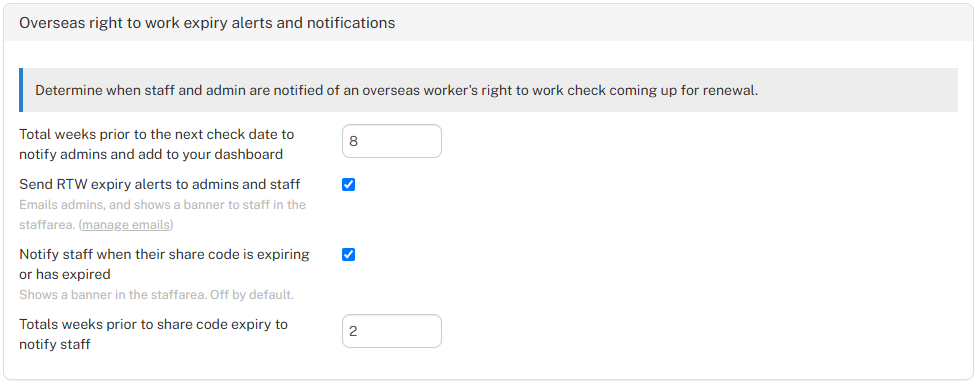
The following settings are available:
- Total weeks prior to the next check date to notify admins and add to your dashboard – Set how many weeks before the next check administrators should be notified. For example, entering 8 provides eight weeks' notice.
- Send RTW expiry alerts to admins and staff – Enable email notifications for administrators and notification banners within the staff area. Use Manage emails to configure additional notification recipients.
- Notify staff when their share code is expiring or has expired – Display a notification banner in the staff area when a share code is approaching expiry or has expired.
- Total weeks prior to share code expiry to notify staff – Choose how far in advance staff should receive share code expiry notifications, such as 2 weeks.
How Right to Work expiry monitoring works
The system monitors the Right to Work expiry / next check date recorded within each overseas worker's staff profile.
If no Right to Work check or associated expiry date has been recorded, the system uses the worker's visa expiry date as a fallback to help identify upcoming expiry requirements.
This helps ensure workers remain visible in compliance monitoring even where a separate Right to Work verification record has not yet been completed.
Monitoring Right to Work status on the dashboard
The Requires urgent attention section of the dashboard highlights overseas workers with outstanding Right to Work requirements.
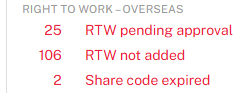
The dashboard includes:
- RTW pending approval – Overseas worker checks awaiting administrator approval.
- RTW not added – Overseas workers without a recorded Right to Work check.
- Share code expired – Overseas workers whose recorded share codes have expired.
Click on any status to view the corresponding list of staff members requiring attention.
Viewing compliance indicators throughout the system
Compliance indicators are displayed alongside worker records throughout the system, including staff searches, quick searches and staff booking screens.
These icons provide an immediate visual indication of a worker's compliance status without needing to open their staff profile. A typical example might be:

The indicators use the following colours:
- Grey – Not uploaded: The required information or document has not been provided.
- Orange – Pending approval: The information or document has been uploaded but has not yet been approved.
- Green – Approved: The information or document has been reviewed and approved.
- Red – Expired: The document or recorded verification has expired.
Indicators can appear for passport, visa, and Right to Work records, alongside other compliance information such as Local IDs, permits, and terms and conditions.
This allows administrators to quickly identify missing, pending or expired information when searching for workers or making booking decisions.
Important: Right to Work expiry dates and share code expiry dates are different. An expired share code does not necessarily mean that the worker's permission to work has expired. Employers must ensure that appropriate follow-up checks are completed where required.