Identification
Configuring identification settings and document requirements
WiseOS allows you to customise the identification information and supporting documents collected from staff during registration. You can determine which fields are displayed, which documents are required and how passport expiry notifications are managed.
Accessing identification settings
To access these settings:
- Navigate to Settings > Staff registration > Manage the registration form > Edit
- Go to Manage for the ID & Right to Work section.
From here, you can configure the identification requirements that apply to your staff registration process.
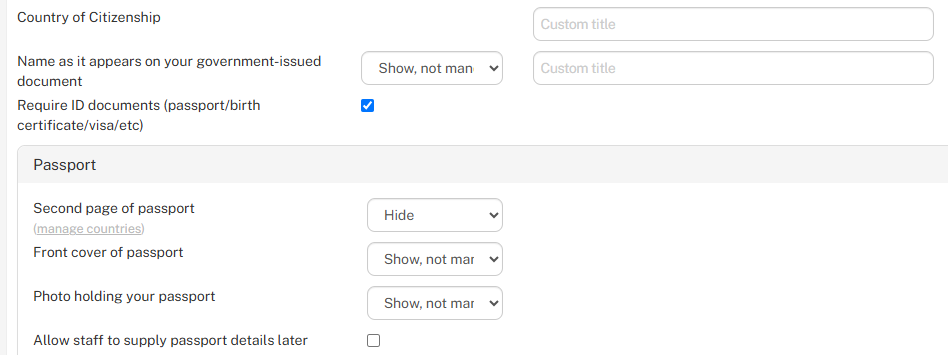
Configuring identification information
The following settings control the personal identification information collected during registration:
- Country of citizenship
- Collects the staff member's country of citizenship.
- Enter a custom title if you want to change the wording displayed to staff.
- Name as it appears on your government-issued document
- Use the dropdown menu to control whether this field is displayed or mandatory.
- Enter a custom title if you want to change the wording displayed during registration.
- Require ID documents (passport/birth certificate/visa/etc.)
- Tick the checkbox to require staff to provide identification documents.
- Untick the checkbox if you do not want to enforce this requirement during registration.
Configuring passport document requirements
Within the Passport section, you can customise which additional passport documents and photographs staff are asked to provide.
- Second page of passport
- Use the dropdown menu to show or hide this requirement, or make it mandatory where applicable.
- Click Manage countries to configure which nationalities are required to provide an additional passport page.
- This is particularly useful where additional passport pages are required for immigration or identification purposes. For example, UAE immigration procedures may require additional passport pages from Indian and Syrian nationals.
- Requirements can vary by nationality and country, allowing you to configure document collection accordingly.
- Front cover of passport
- Use the dropdown menu to determine whether staff should provide an image of their passport's front cover.
- Choose whether the field is optional or mandatory, or hide it entirely.
- Photo holding your passport
- Use the dropdown menu to determine whether staff should upload a photograph of themselves holding their passport.
- Choose whether the field is optional or mandatory, or hide it entirely.
- Allow staff to supply passport details later
- Tick the checkbox to allow staff to complete their passport information at a later stage.
- Leave it unticked if you do not want to allow this option.
Collecting identification documents during staff registration
During the staff registration process, WiseOS allows staff to provide their identification details and upload supporting documents directly through the ID & Right to Work page of the registration form within the staff area.
The information and documents requested depend on the registration requirements configured by your organisation.
Providing identification information
The identification section of the staff registration form is shown below.
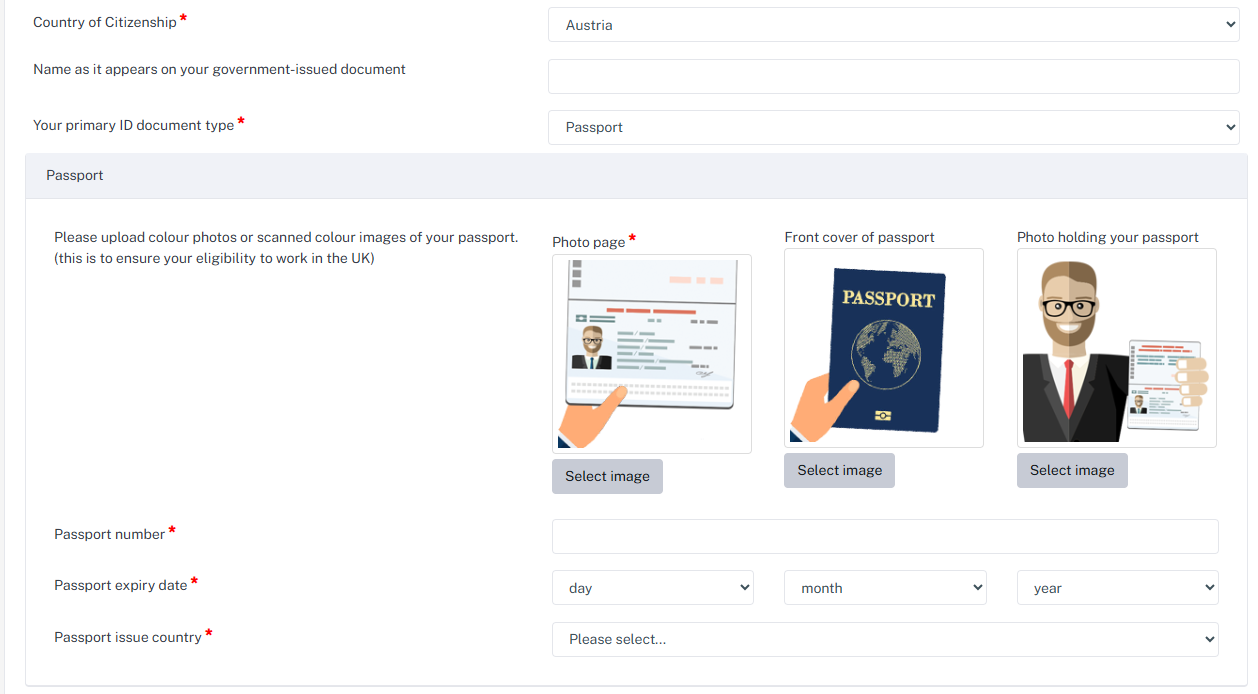
Staff can provide their country of citizenship, select their primary identification document type and enter the relevant identification details.
For passport identification, this typically includes:
- Uploading a colour image of the passport photo page.
- Providing additional images, such as the passport front cover or a photograph holding the passport, where requested.
- Entering the passport number, expiry date and issuing country.
- Providing additional passport pages where required for specific nationalities.
Fields marked with a red asterisk (*) are mandatory. The information requested may vary depending on your organisation's configuration.
Viewing, verifying and managing identification in staff profiles
You can view, verify and manage staff identification documents directly from their staff profile, including passports, birth certificates and supporting identification images.
Accessing identification documents
- Open the relevant Staff Profile.
- Select the ID & Right to Work tab.
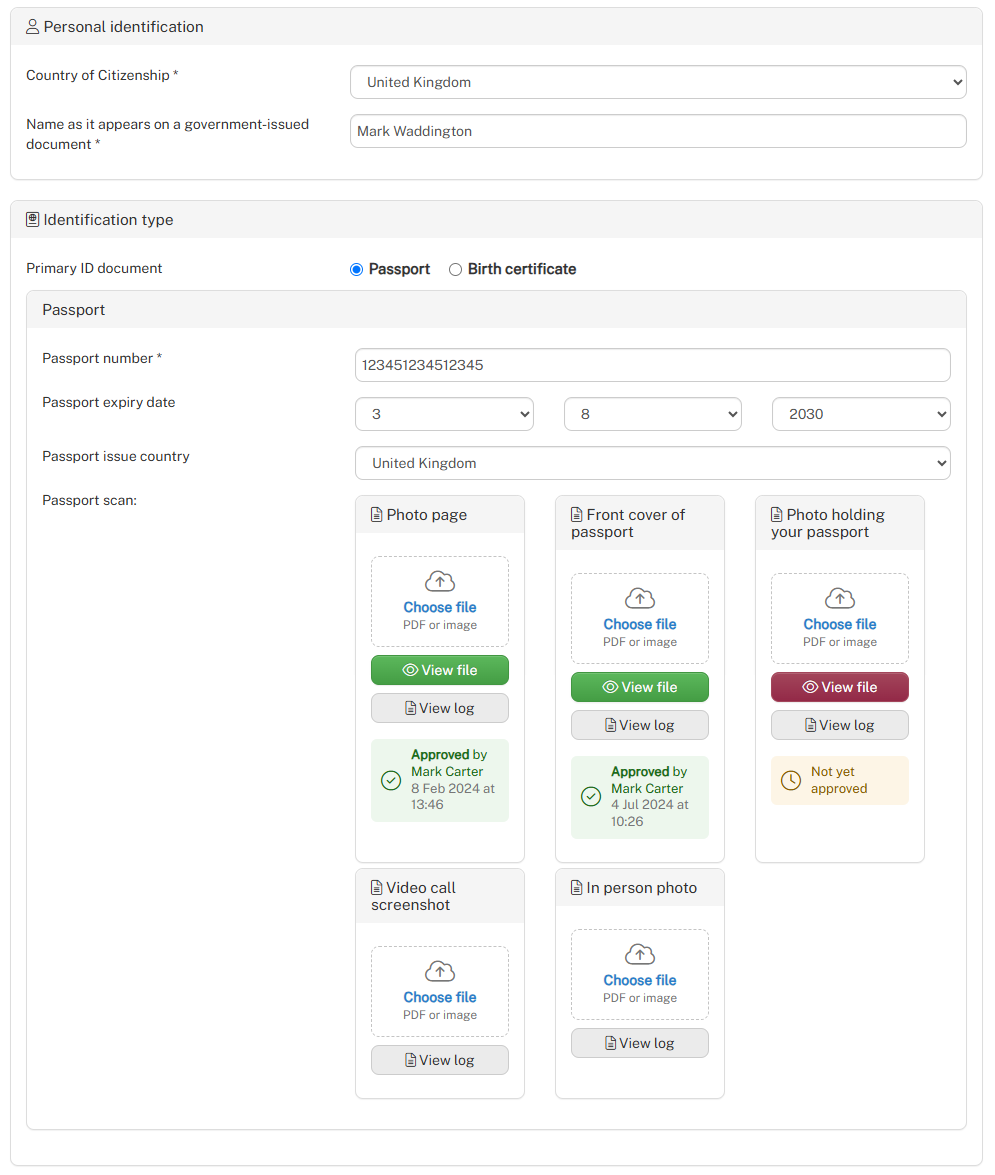
- Scroll to the Personal identification and Identification type sections.
Here you can view the staff member's citizenship, identification details, document expiry dates and uploaded files.
Viewing and approving documents
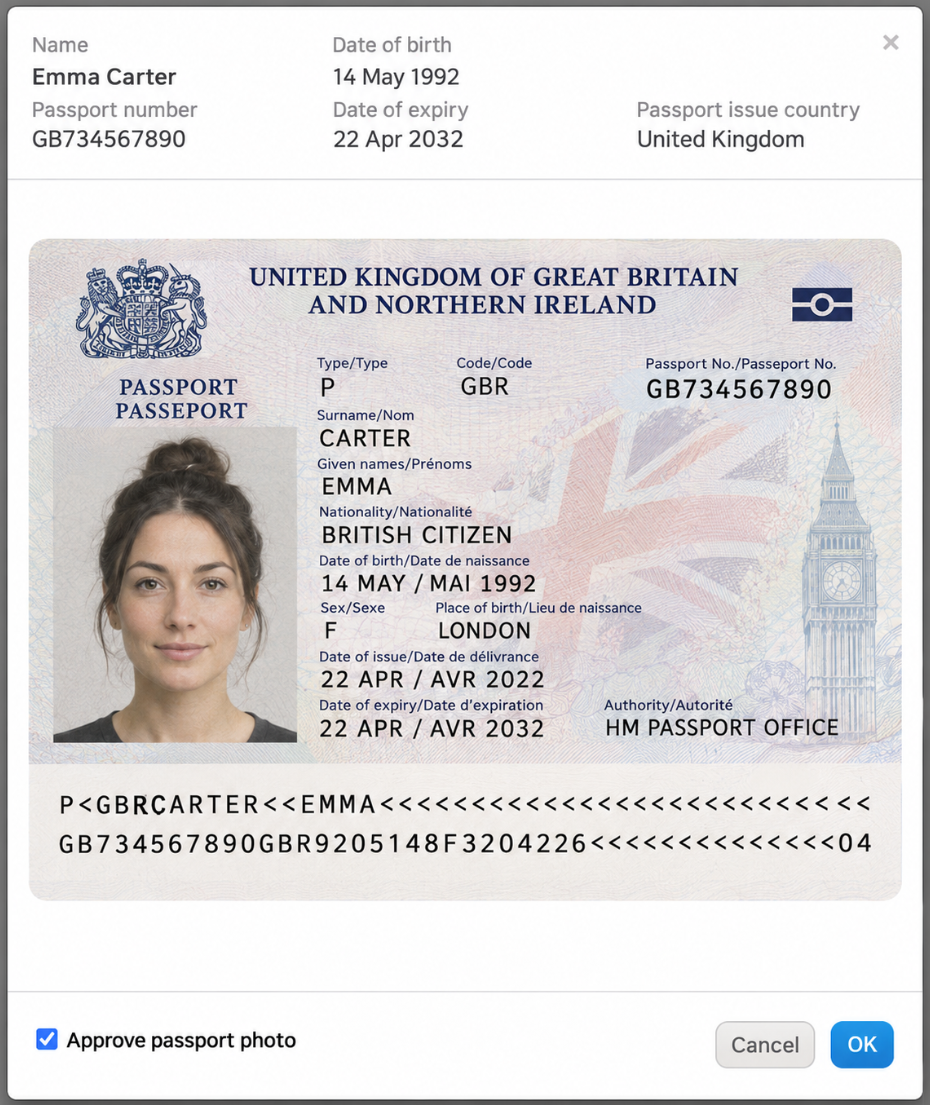
Each uploaded document has a View file button, allowing you to open and inspect the document.
When viewing a document, you can:
- Review the uploaded image alongside the staff member's identification details.
- Tick or untick the Approve checkbox to confirm whether the document has been verified.
- Click OK to save the approval status.
Approved documents display a green confirmation showing who approved them and when. Documents awaiting approval are clearly identified.
Viewing document history
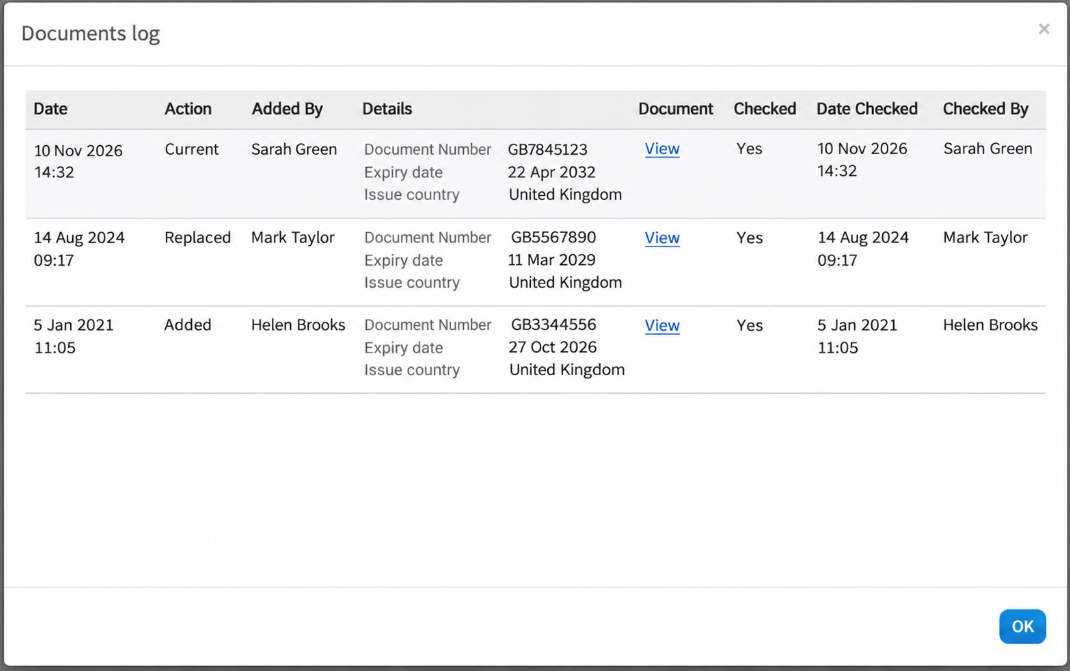
Select View log beneath an identification document to access its history.
The document log records previous uploads and replacements, who made the changes, and when documents were checked and approved. Previous document versions can also be viewed.
This provides a clear audit trail of identification changes and verification activity.
Updating identification documents
Identification details and uploaded documents can be updated directly within the ID & Right to Work tab. When a document is replaced, the previous version remains accessible through the document log, maintaining a history of changes.
Monitoring identification status, document expiry and alerts
Learn how to configure passport expiry notifications, monitor identification document status and identify staff records that require attention.
Configuring passport expiry alerts
To access the passport expiry notification settings:
1. Navigate to Settings > Staff registration > Manage the registration form > Edit
2. Go to Manage for the ID & Right to Work section.
Here you can configure when passport expiry notifications are triggered.
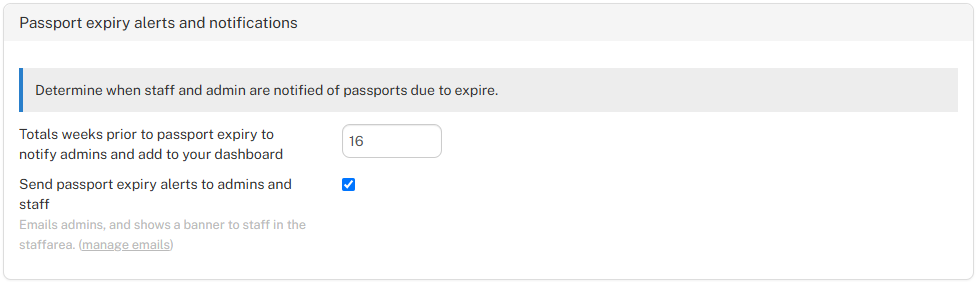
- Weeks before expiry: Set how many weeks in advance notifications should begin.
- Send passport expiry alerts: Enable automatic email notifications to agency administrators and staff.
When enabled, agency administrators receive email alerts, while staff are notified through their staff area, prompting them to update their documents.
Staff notifications
When identification or Right to Work documents expire, staff see a prominent warning in their staff area.
The Update Now button directs them to update their information, helping to keep their records current.

Monitoring identification from the dashboard
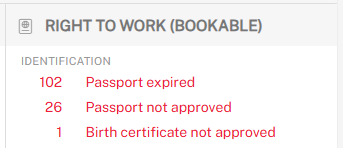
The main dashboard provides an overview of staff identification status, highlighting documents that require attention.
The Identification section displays:
- Passport expired: Staff with expired passports.
- Passport not approved: Uploaded passports awaiting approval.
- Birth certificate not approved: Birth certificates awaiting approval.
Each category displays the number of affected staff, allowing administrators to quickly identify outstanding identification requirements.
Identification status icons
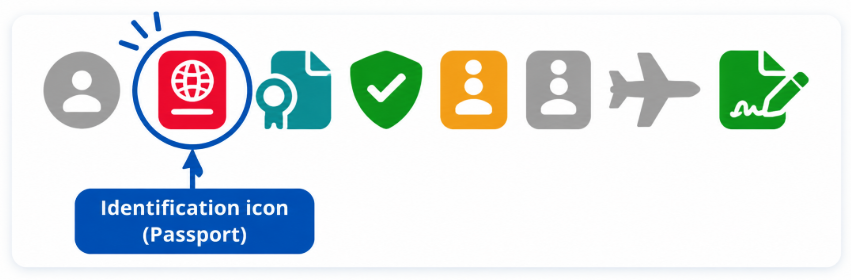
Colour-coded identification icons appear alongside staff names throughout the system, providing a quick visual indication of their document status without needing to open individual staff profiles.
For example, the identification icon uses the following colours:
- Red: Identification not uploaded.
- Orange: Passport uploaded but awaiting approval.
- Green: Passport approved.
- Blue: Passport expired.
These icons are visible across staff records and other areas where staff names are displayed, making it easy to identify outstanding requirements at a glance.
Together, the dashboard, status icons and automated notifications provide multiple ways to monitor identification documents and identify records requiring attention.