Immigration status
Configuring immigration status settings and visa requirements
Configure how visa and immigration information is collected during staff registration, including available visa types, document submission requirements and nationality-specific immigration settings.
Accessing immigration status settings
To access these settings:
- Navigate to Settings > Staff registration > Manage the registration form > Edit
- Go to Manage for the ID & Right to Work section.
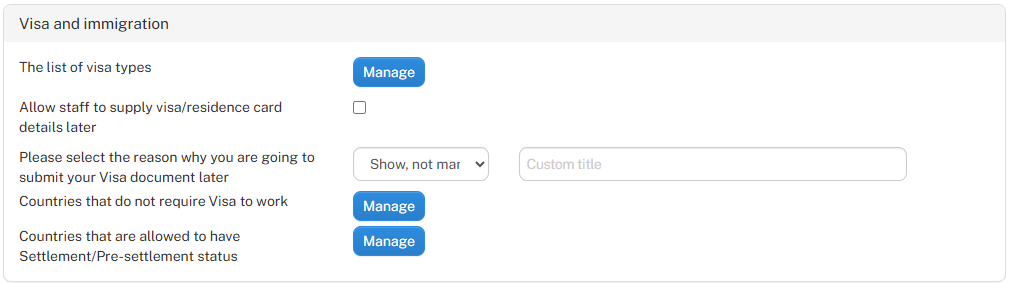
Once you've navigated to the Visa and immigration section, you'll see the settings shown below.
Configuring visa and immigration requirements
The following settings allow you to customise how visa and immigration information is collected during staff registration.
- The list of visa types
- Click Manage to configure the visa types available for staff to select during registration.
- Maintain a list of visa categories relevant to your organisation.
- Allow staff to supply visa/residence card details later
- Tick the checkbox to allow staff to provide their visa or residence card details at a later stage.
- Leave it unticked if you do not want to offer this option.
- Please select the reason why you are going to submit your Visa document later
- Use the dropdown menu to control whether staff are asked to provide a reason for submitting their visa documentation later.
- Choose whether the field is optional, mandatory or hidden.
- Enter a Custom title if you want to change the wording displayed to staff.
- Countries that do not require Visa to work
- Click Manage to configure the countries whose citizens are not required to provide a visa under your organisation's configured requirements.
- This allows visa requirements during registration to be tailored according to nationality.
- Countries that are allowed to have Settlement/Pre-settlement status
- Click Manage to configure the countries whose citizens can be presented with settlement or pre-settlement status options during registration.
- This is particularly relevant to UK immigration arrangements, where eligible individuals may hold settled or pre-settled status.
Collecting visa and immigration details during staff registration
During staff registration, staff can provide their visa and immigration information through the ID & Right to Work page of the registration form within the staff area.
The information and documents requested will depend on the requirements configured in the previous section, **Configuring immigration status settings and visa requirements**. These settings determine which visa types are available, which information is requested and whether staff can provide certain details at a later stage.
Providing visa and immigration information
Staff are asked to select their immigration document type from the Your Visa document dropdown menu, depending on the settings applied by your organisation.
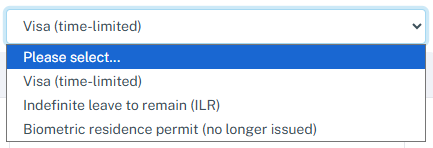
The available options may include:
- Visa (time-limited) – For staff holding a visa with a defined expiry date.
- Indefinite leave to remain (ILR) – For staff who hold indefinite leave to remain in the UK.
- Biometric residence permit (BRP) – For staff providing an existing biometric residence permit, which is no longer issued in the UK.
Providing visa details
When **Visa (time-limited)** is selected, staff are presented with additional fields to complete.
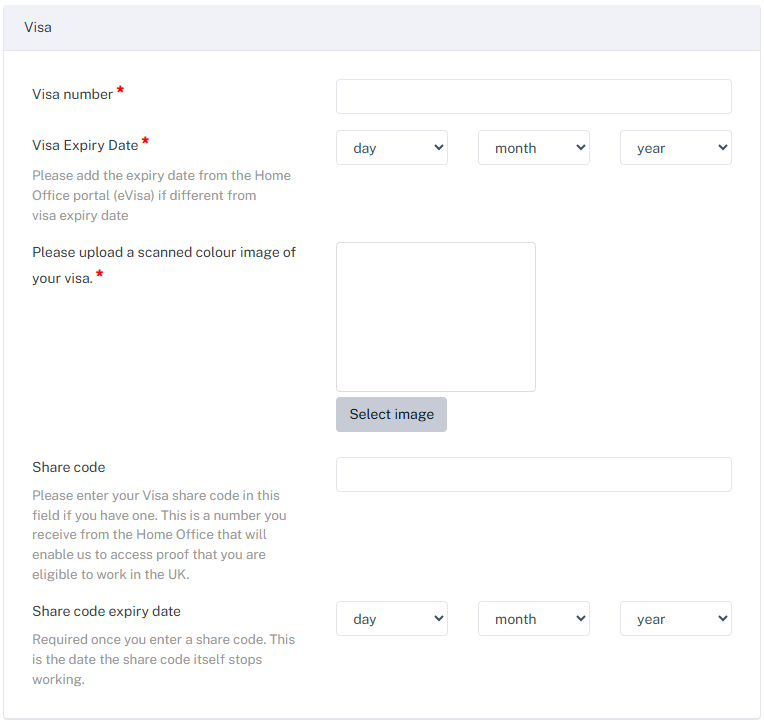
These include:
- Visa number – Enter the visa reference or document number.
- Visa expiry date – Enter the expiry date of your immigration permission, as recorded by the Home Office. This may differ from the expiry date printed on your physical visa or residence permit.
- Visa document – Upload a clear colour image or scanned copy of the visa.
- Share code – Enter a Home Office share code, where available.
- Share code expiry date – Record the expiry date of the share code, where applicable.
Fields marked with a red asterisk (*) are mandatory.
Other immigration document types
Depending on the document type selected, the registration requirements will differ:
- Indefinite leave to remain (ILR)
- No additional visa details or document uploads are required within this section.
- Biometric residence permit (BRP)
- Staff are asked to provide images of both the front and back of their biometric residence permit.
Viewing and managing immigration status in staff profiles
The Immigration status section of a staff member's profile allows administrators to view, update and manage their visa and immigration information, including immigration status, supporting documents and permission expiry dates.
Information provided during staff registration is available here and can be updated when circumstances change.
Accessing immigration status information
To access a staff member's immigration information:
- Navigate to Staff > Staff profiles and open the relevant staff member's profile.
- Select the ID & Right to Work tab.
- Locate the Immigration status section.
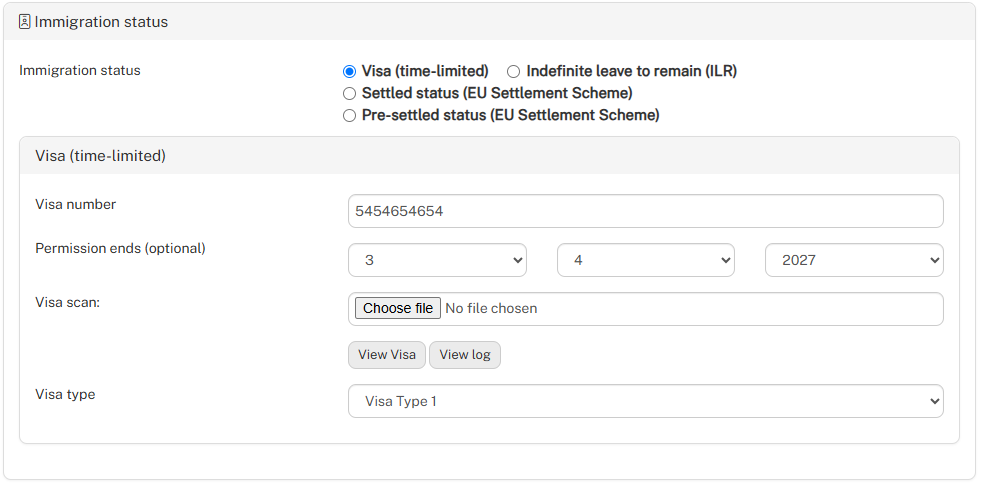
The immigration status section is shown below.
Viewing and managing immigration status
Administrators can select or update the staff member's immigration status using the available options:
- Visa (time-limited) – For staff with immigration permission that has a defined expiry date.
- Indefinite leave to remain (ILR) – For staff with indefinite permission to remain in the UK.
- Settled status (EU Settlement Scheme) – For staff holding settled status under the EU Settlement Scheme.
- Pre-settled status (EU Settlement Scheme) – For staff holding pre-settled status under the EU Settlement Scheme.
The fields displayed will depend on the immigration status selected.
Managing visa information
When Visa (time-limited) is selected, administrators can view and manage the following information:
- Visa number – View or update the staff member's visa reference or document number.
- Permission ends (optional) – Record the expiry date of the staff member's immigration permission, which may differ from the date printed on a physical visa or residence permit.
- Visa scan – Upload or replace the supporting visa document.
- View Visa – Open the visa document currently held on the staff member's profile.
- View log – Access the history of recorded visa information or changes.
- Visa type – Select the appropriate visa type from the configured list.
Monitoring missing immigration status information
The dashboard provides a quick overview of staff members whose immigration status has not yet been recorded, helping administrators identify missing information that requires attention.
Monitoring immigration status from the dashboard
Under Immigration Status, the dashboard displays the total number of staff members whose immigration status has not been added.

- Immigration status not added
- Displays the number of staff members without a recorded immigration status.
- Administrators can use this information to identify staff whose immigration details need to be completed.