RTW (UK) - Overseas
Configuring overseas Right to Work settings and verification requirements
You can configure whether overseas workers are asked to provide a Right to Work share code during staff registration.
Accessing Right to Work settings
To access these settings:
Navigate to Settings > Staff registration > Manage the registration form > Edit
Go to Manage for the Right to Work section.

Configuring share code requirements
The Share code setting determines whether staff are asked to provide a Right to Work share code during registration.
Choose from three options:
- Show, mandatory – Staff must provide a share code.
- Show, not mandatory – Staff can provide a share code, but it is optional.
- Hide – The share code field is not displayed during registration.
These settings allow you to control how Right to Work information is collected from overseas workers.
Checking and recording UK Right to Work for overseas workers
For overseas workers who require permission to work in the UK, administrators can record Right to Work verification directly within individual staff profiles.
The system supports three verification methods: **Home Office online check, Manual document check and Employer Checking Service**.
Accessing Right to Work verification
To access these options:
- Open the relevant staff profile.
- Navigate to ID & Right to Work and locate the Right to Work status section.
Select the appropriate Right to Work verification type.
Home Office online check
Use this option when verifying an individual's Right to Work through the Home Office online checking service.
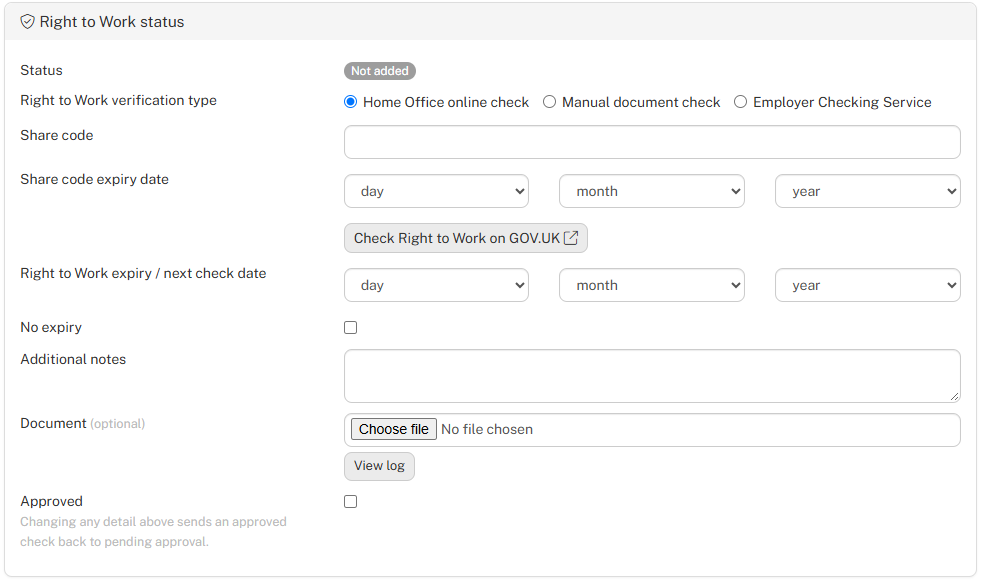
- Share code – Enter the share code provided by the worker. Workers can also supply their share code during staff registration, depending on your registration settings.
- Share code expiry date – Record when the share code expires.
- Check Right to Work on GOV.UK – Opens the official government verification service.
- Right to Work expiry / next check date – Record when the worker's permission expires or a follow-up check is required.
- No expiry – Select where no follow-up expiry date applies.
- Additional notes – Record any relevant information.
- Document – Upload supporting verification evidence.
Manual document check
Select this option where the worker is eligible for a manual Right to Work document check.
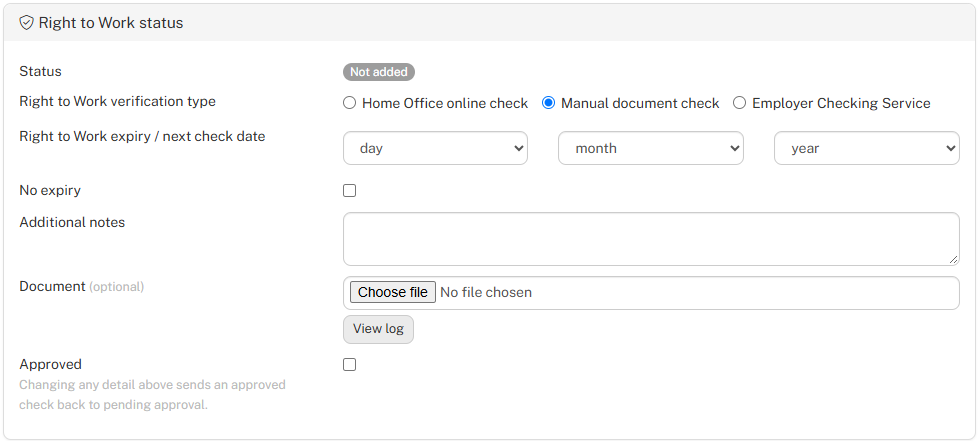
- Record the Right to Work expiry / next check date, add any relevant notes and upload supporting documents where appropriate.
- Select No expiry where applicable.
Employer Checking Service
The Employer Checking Service can be used where the worker's Right to Work needs to be confirmed directly by the Home Office.
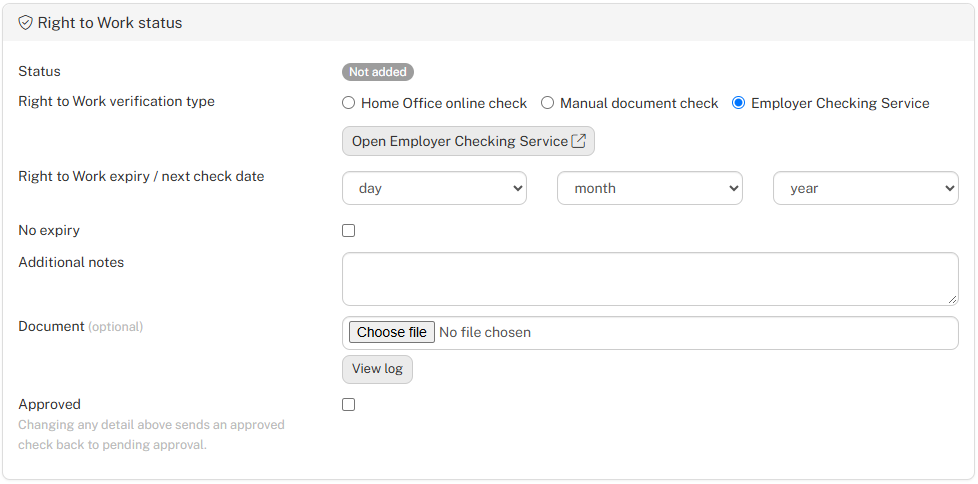
- Click Open Employer Checking Service to access the official service.
- Once the check has been completed, record the relevant expiry or next check date, add supporting notes and upload any confirmation documents.
Approving and recording the check
Once the appropriate verification has been completed, select Approved to record the check as approved.
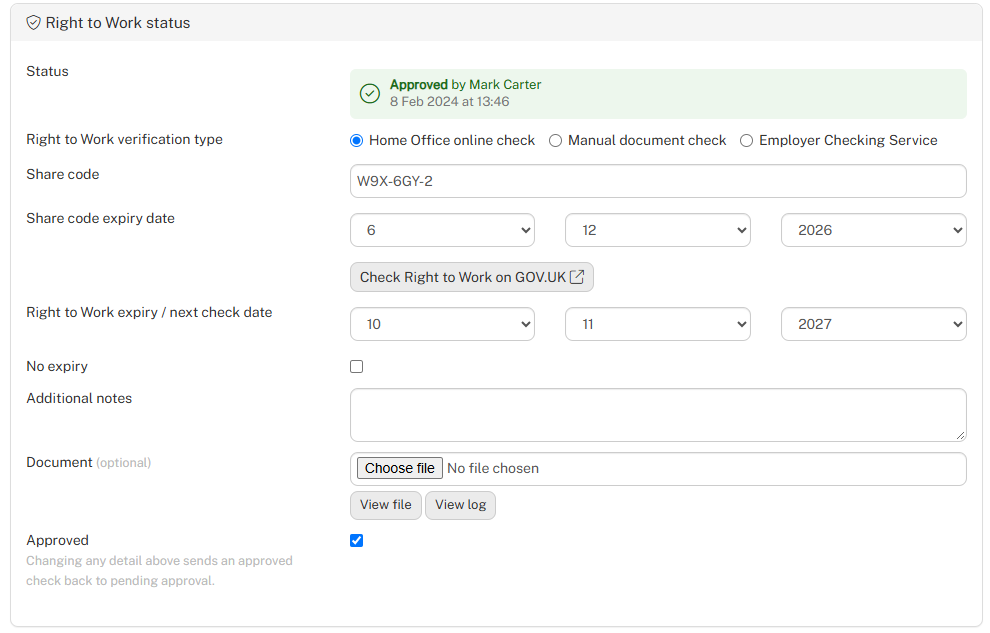
You can also select View log to access the verification record.
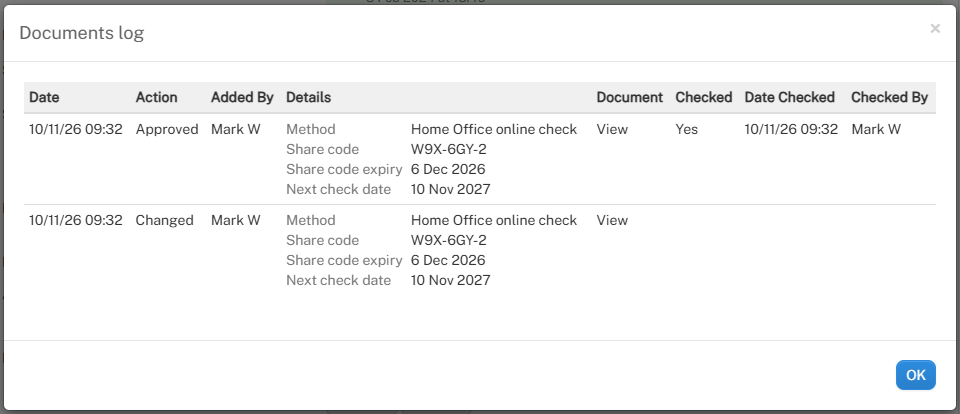
Changing any verification details after approval will return the check to pending approval, ensuring updated information is reviewed again.
Important: Employers remain responsible for completing the appropriate Right to Work verification and retaining the evidence required under UK law.